This article outlines how to add a Past Exhibitor to the current event. You will only do this if the company is not going through the rental process and you will be sending them their login credentials.
If you are using the rental process, the Past Exhibitor can select their name in the dropdown menu in the Start Page of the rental process (Fig. 1).
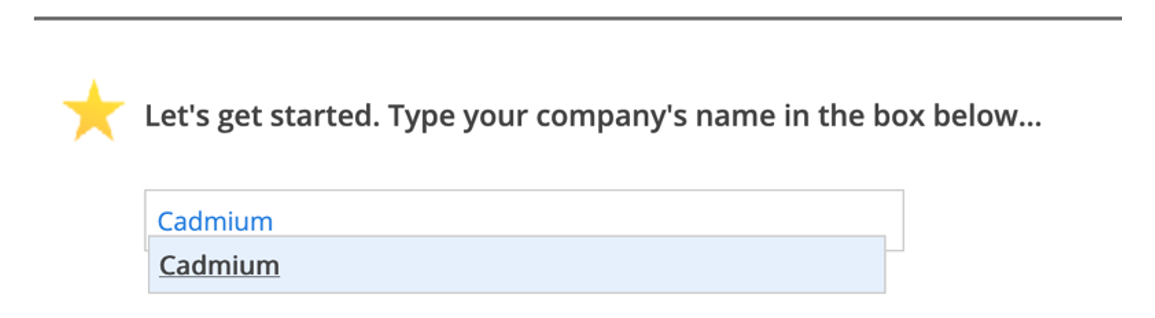
Fig. 1 - Rental Process Start Page.
If you notice that the Past Exhibitor record seems incomplete or inaccurate please alert your Project Manager and request the data be graduated from a past event.
Process
- Launch the Expo Harvester module for your event. In the main navigation, hover over the Expo Data icon then select Companies (Fig. 2).

Fig. 2 - Expo Harvester Data Icon Drop-down.
- Select the Add Company button in the top left corner (Fig. 3).

Fig. 3 - Add Company Button.
- In the Add Company pop-up, click the dropdown under "Select a past exhibitor" and select the company you want to add (Fig. 4).
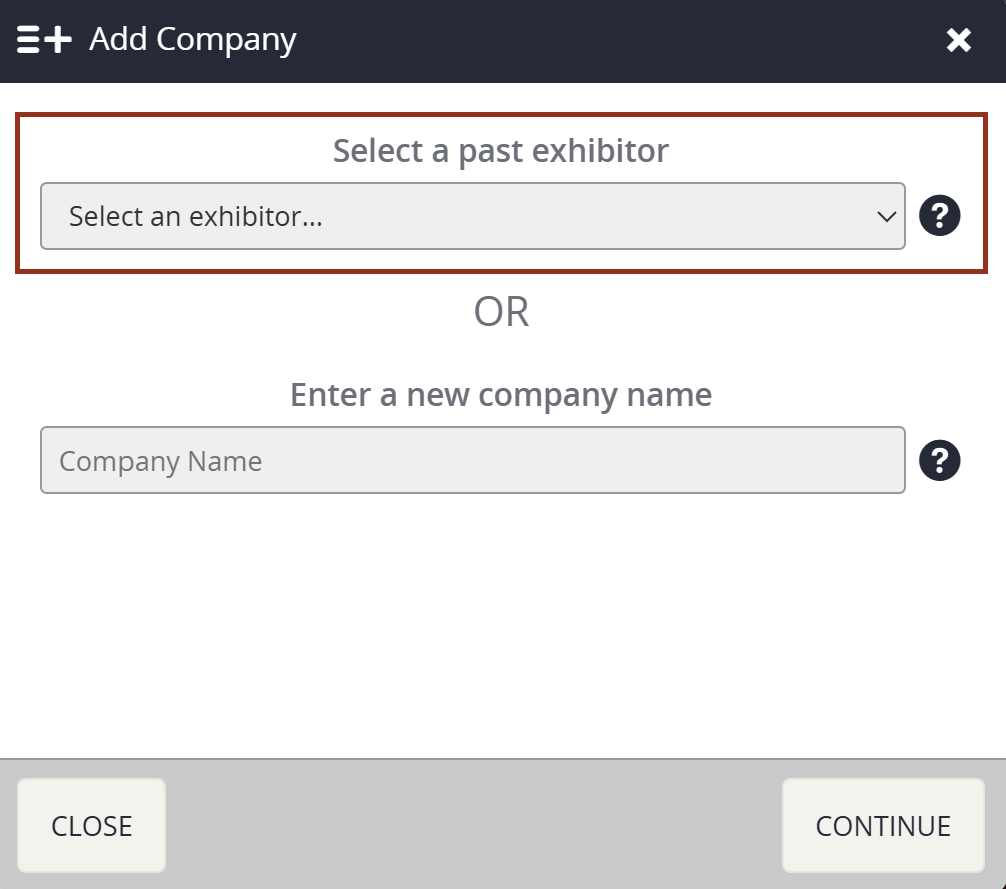
Fig. 4 - Select a Past Exhibitor Drop-down.
NOTE
If you don’t see the company you want to add and you know they were in a previous event, or if you aren’t seeing the most recent information in a past exhibitor’s account, please reach out to your Project Manager so they can graduate the data from the past event.
Was this article helpful?
That’s Great!
Thank you for your feedback
Sorry! We couldn't be helpful
Thank you for your feedback
Feedback sent
We appreciate your effort and will try to fix the article