To view a company's invoice, launch the Expo Harvester module for your event. Click on the Sales icon in the Main Navigation (Fig. 1). You will be taken to the Payment Summary page, which groups all companies by their payment status.

Fig. 1 - Expo Harvester Sales Page Icon.
The quickest way to find a company is to type its name in the Search bar in the upper right corner.
When you've found the company, click on its name, and then select the View Invoice button in the resulting pop-up. If the invoice has already been paid, there will be a View Receipt button in the pop-up instead (Fig. 2).
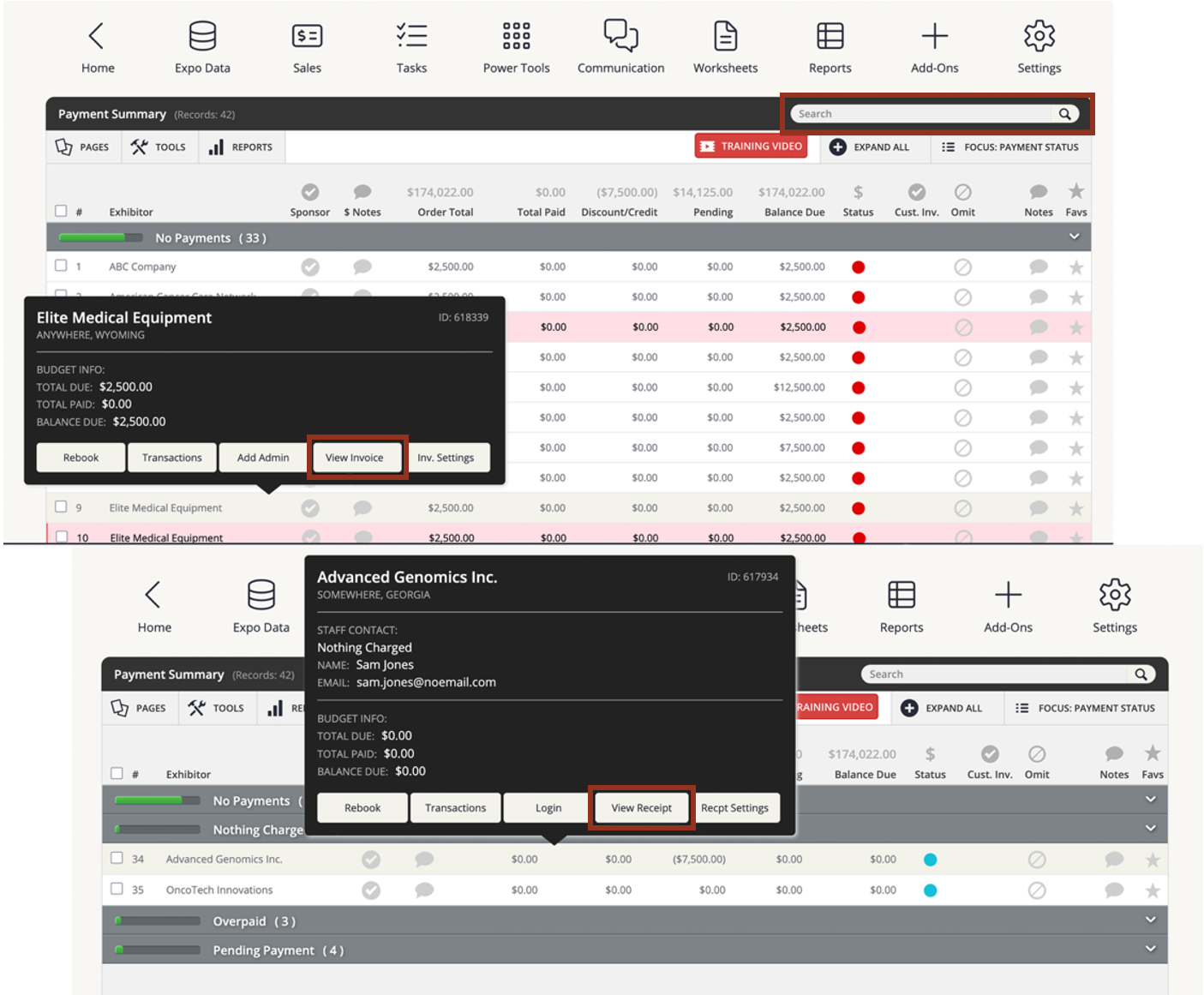
Fig. 2 - Payment Summary Page Popups.
Invoices and Receipts can also be accessed via the Transactions page. From the Sales (Payment Summary) page, click on the company name, then select Transactions from the resulting popup. You'll be taken to that company’s Transactions page. Select the VIEW INVOICE button in the top toolbar to open the invoice in a new tab. If the invoice has already been paid, there will be a VIEW RECEIPT button in the top toolbar instead (Fig. 3).
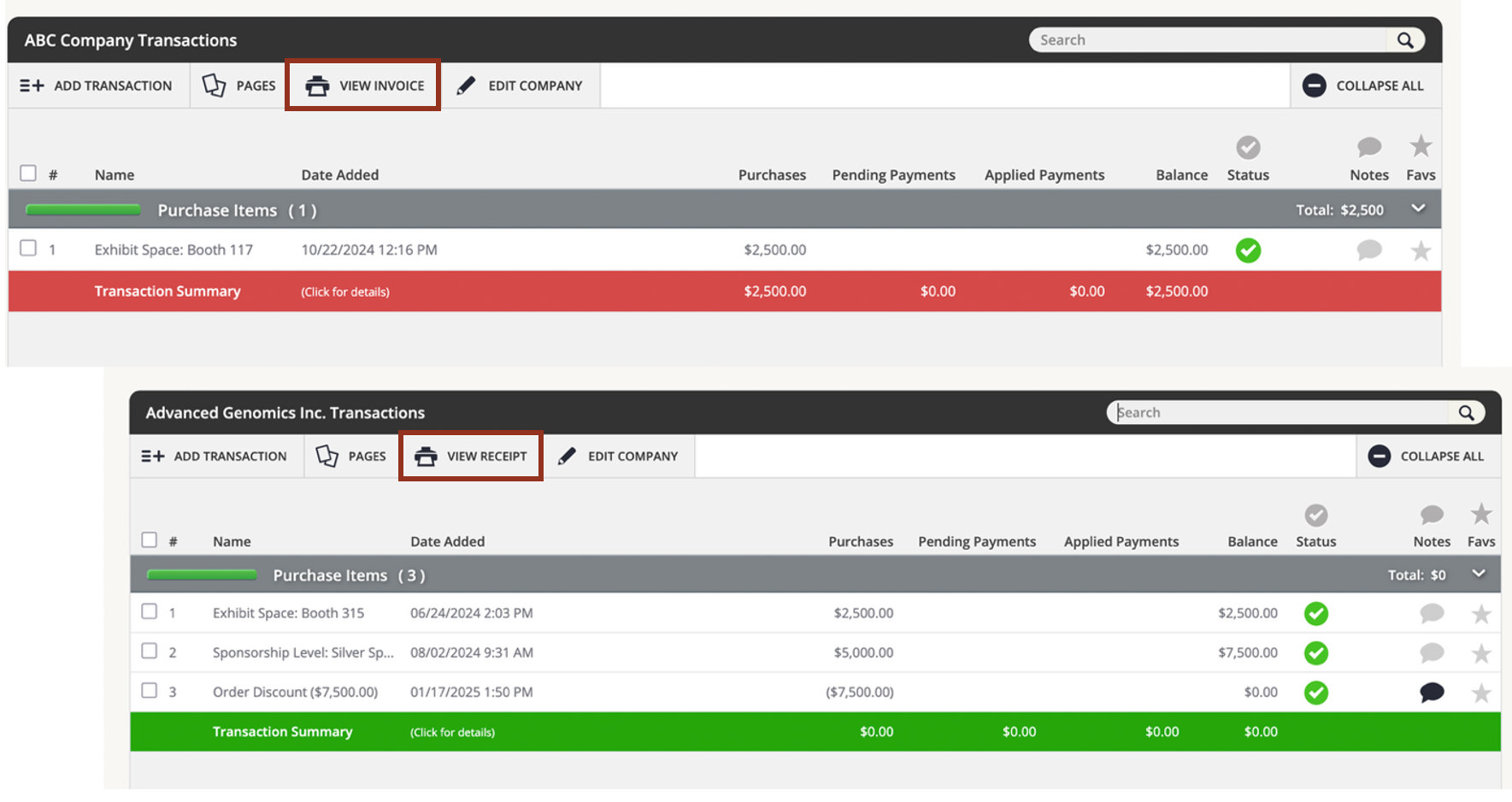
Fig. 3 - Transactions Page.
Was this article helpful?
That’s Great!
Thank you for your feedback
Sorry! We couldn't be helpful
Thank you for your feedback
Feedback sent
We appreciate your effort and will try to fix the article