The Ad Tracker shows you the lifetime performance numbers for a single tracked item (an ad, a navigation menu link, a document, etc.) and gives you links to deeper reports.
To access your Ad Tracker, in either the Website or App module, select the Content icon at the top of the page, then under the 'Advanced' bucket please select the Ad Trackers tile.
In the Choose Ad Tracker Filter popup select a Sponsor/Banner type from the dropdown then the Continue button (Fig. 1).
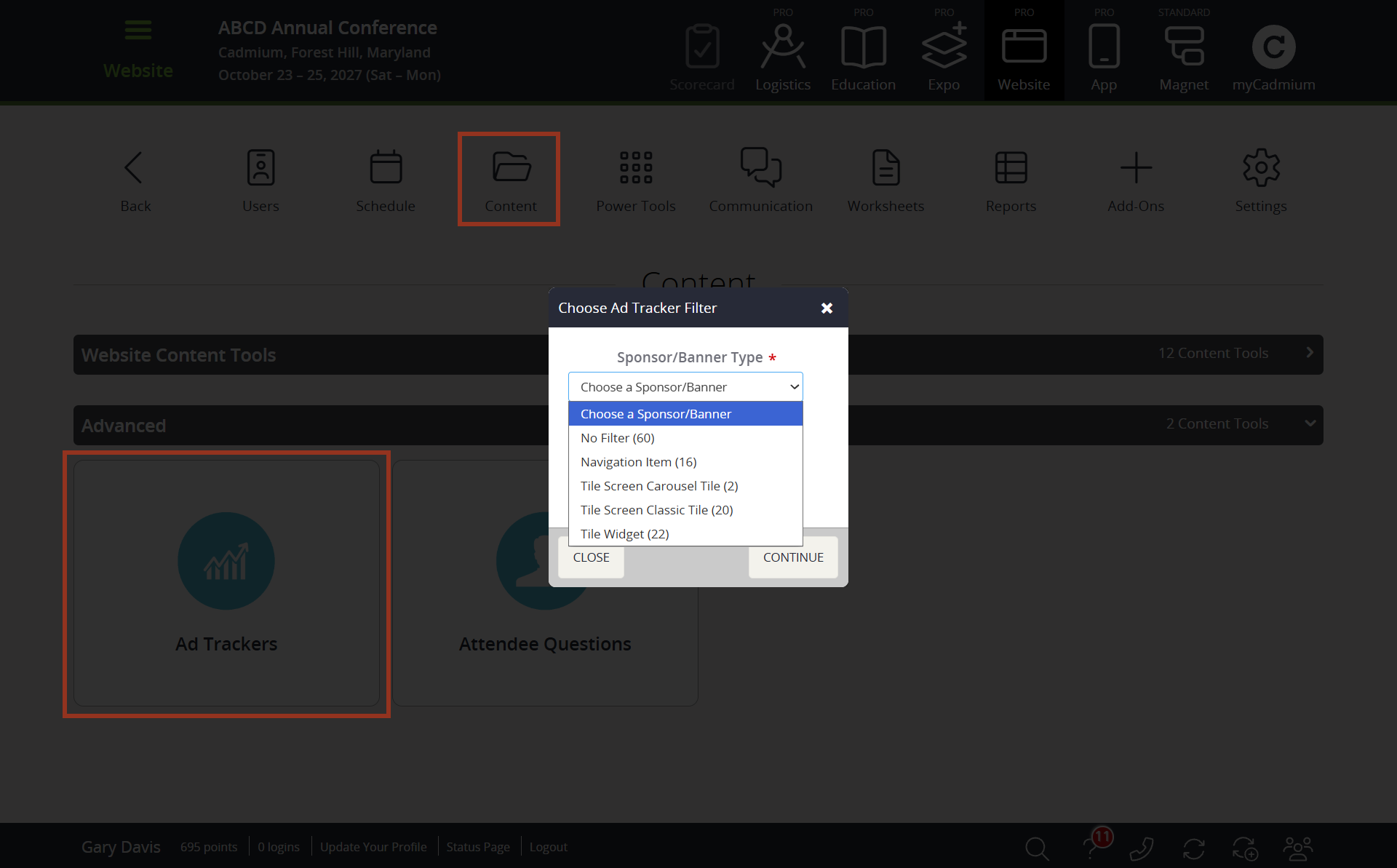
Fig. 1 - Content Page Ad Tracker Tile And Choose Ad Tracker Filter Popup.
This will open a page for the type you selected. The Add Tracker Details popup opens when you click on an item inside the Ad Tracker page (Fig. 2).
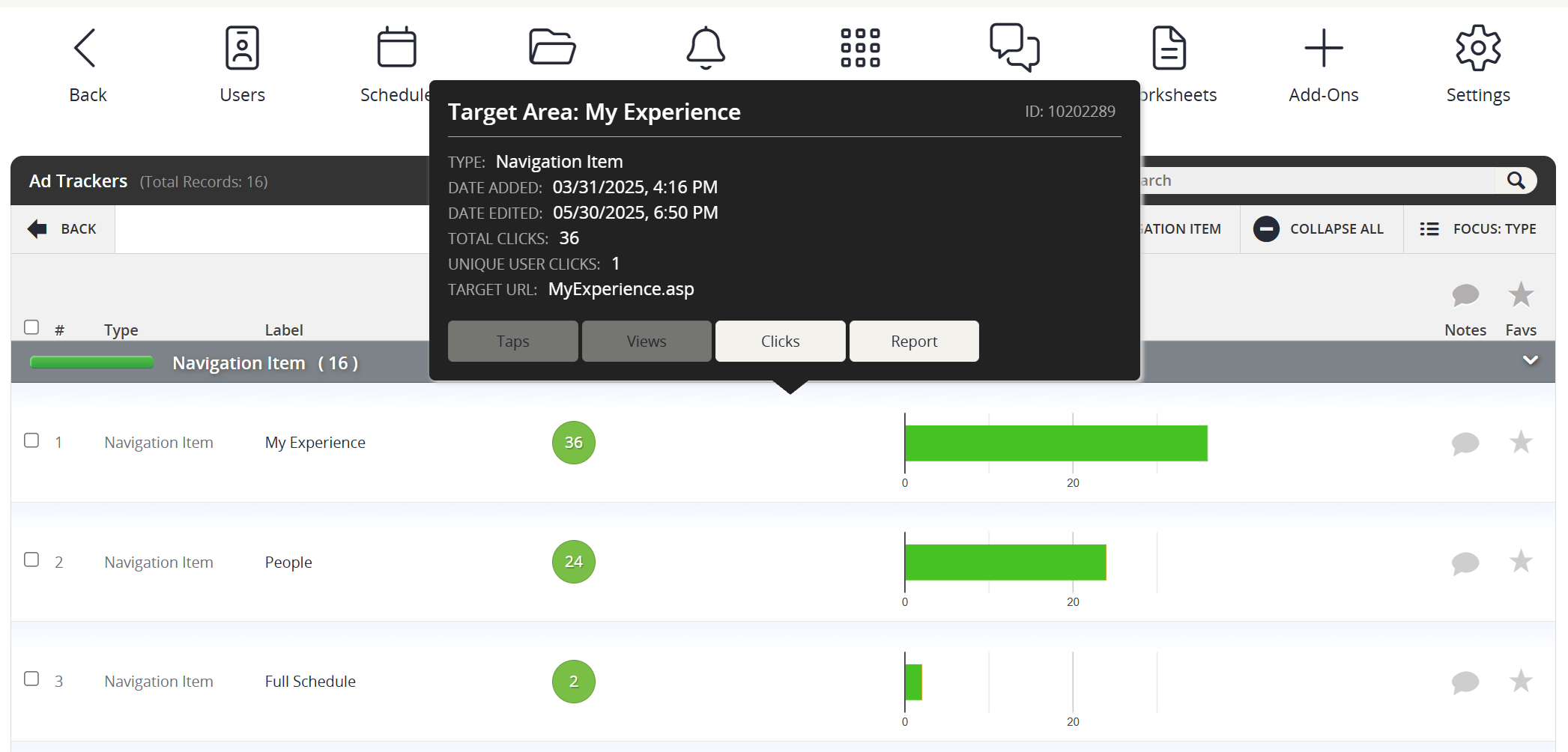
Fig. 2 - Ad Tracker Details Popup.
What is an "Ad Tracker"?
An Ad Tracker is any item on the website or in the mobile app that we're keeping count of. It might be:
- A banner ad on the home screen
- A sponsor logo
- A document download link
- A menu/navigation item
- A document asset (like a slide deck attached to a session)
Every time someone interacts with one of these items, the system records a single entry – like a tally mark in a notebook. The popup adds those tally marks up for you and shows the totals.
The three families of numbers
The popup tracks three different types of user interaction. Not every tracker has all three (see "Why some numbers are missing" below).
1. Views (the ad was shown on someone's screen)
A View is recorded every time the ad/banner is rendered on a user's screen, whether or not they did anything with it.
| Stat | What it counts |
|---|---|
| Total Views | Every single time the ad was shown. If one person sees it 10 times, that's 10 views. |
| Unique User Views | The number of different logged-in people who saw the ad. If one person sees it 10 times, that's still only 1 unique view. |
NOTE
Total Views ≥ Unique Views (almost always). One person can rack up many total views but only ever counts as 1 unique.
2. Clicks (the user clicked it on the website)
A Click is recorded when a user clicks the item on the event website.
| Stat | What it counts |
|---|---|
| Total Clicks | Every click recorded on this item, including repeat clicks from the same person. |
| Unique User Clicks | The number of different logged-in people who clicked it at least once. |
| Anonymous Clicks | Clicks from users who weren't signed in. |
3. Taps (the user tapped it in the mobile app)
A Tap is the mobile-app equivalent of a click. It's recorded when a user taps the item inside the eventScribe iOS or Android app.
| Stat | What it counts |
|---|---|
| Total Taps | Every tap recorded on this item, including repeat taps from the same person. |
| Unique User Taps | The number of different logged-in people who tapped it at least once. |
| Anonymous Taps | Taps from users who weren't signed in to the app. |
How "Total" vs. "Unique" works (the simple version)
Imagine the system keeps a guestbook for each ad. Every time the ad is shown or interacted with, one line gets added to the book with:
- who did it
- when they did it
- what type of interaction (view, click, or tap)
When you open the popup:
- Total = how many lines are in the book.
- Unique User = how many different signed-in people appear in the book at least once.
- Anonymous = how many lines came from someone who wasn't signed in.
So if the same logged-in person taps an ad 5 times, that's 5 total taps but only 1 unique user tap.
Why some numbers are missing or zero
The popup hides rows that don't apply, so you may not see every field on every item. Here's the cheat sheet:
| Tracker Type | Views? | Clicks? | Taps? |
|---|---|---|---|
| Banner / Sponsor / Ad (app) | Yes | No | Yes |
| Banner / Sponsor / Ad (website) | Yes | Yes | No |
| Navigation Item | No | Yes | Yes (if in app menu) |
| Document | Yes (file opens) | Hidden | — |
| Document Asset | Yes | Hidden | — |
A few specific rules baked into the popup:
- Total Views and Unique User Views are hidden entirely when an item has zero views. So if you don't see a "Views" row at all, that item simply never recorded a view (often because views don't apply to it – like menu items).
- Total Taps and Unique User Taps are hidden when there are zero taps.
- Anonymous rows only appear when at least one anonymous interaction was recorded. If everyone who interacted with the ad was signed in, you won't see the anonymous line at all.
- Clicks for Documents and Document Assets are intentionally blanked out – the system only really tracks views for those.
FAQ
Q: Why is my Total Views higher than my Total Clicks?
That's normal and usually a good sign. People see ads more often than they click them. The ratio (clicks ÷ views) is a rough measure of how effective the ad is.
Q: My Unique User Clicks is 9, but Total Clicks is 33. Did 24 anonymous people click it?
Not necessarily. The 33 includes repeat clicks from the same 9 people. If there were anonymous clicks on top of that, you'd see a separate Anonymous Clicks row.
Q: Why doesn't this item show Views?
Either (a) it's a type that doesn't have a "shown on screen" concept, like a menu item, or (b) it's an ad that genuinely was never displayed during the event.
Q: Why are clicks and taps tracked separately?
Because the website and the mobile app are two different products and we want to know which one is driving engagement. Clicks = website. Taps = app.
Q: Where do anonymous interactions come from?
Anyone using the website or app without being logged in. The system can still tell that someone interacted, but it can't tell who, so all anonymous interactions get bucketed together.
Q: How fresh are these numbers?
They're updated as the underlying records come in from the app and website. For the mobile app, that's after a user's device has uploaded its activity to the server, which usually happens within a few minutes but can be delayed if the user is offline.
Q: Can I trust these numbers for billing/reporting to sponsors?
Yes, those are reliable for website Clicks and app Taps. For Views, keep in mind that a single user scrolling past a rotating banner several times will rack up multiple views. Unique User Views is usually the better number when reporting "how many people saw this ad."
Was this article helpful?
That’s Great!
Thank you for your feedback
Sorry! We couldn't be helpful
Thank you for your feedback
Feedback sent
We appreciate your effort and will try to fix the article