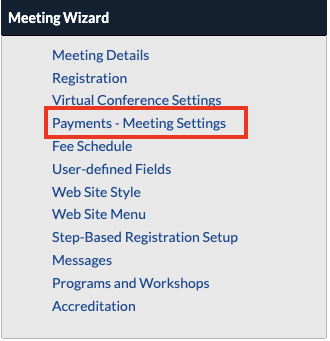
- To make a meeting live, click on the Payments - Meeting Settings page under the Meeting Wizard header.
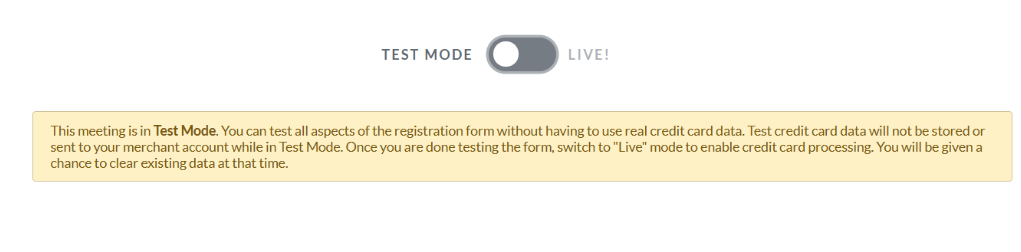
As soon as you have switched the meeting from test mode to live mode, test mode alerts will disappear.
Any registrations that are completed while your meeting is in test mode will not be charged. You will have the option to clear any test registrations during the process of going live.
Going Live
- Click on the status toggle at the top of the page to switch from test mode to live mode.
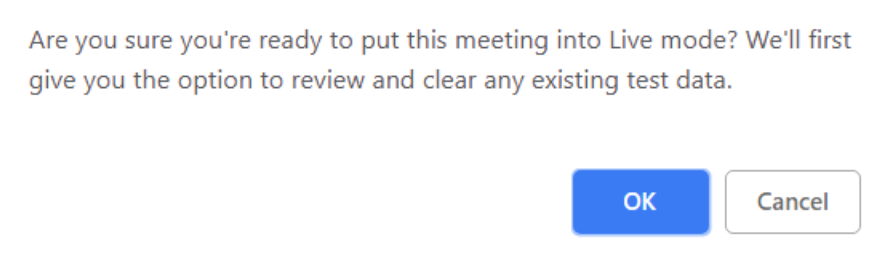
- You will be prompted to confirm that you would like to begin the process of making the meeting live. Click OK to continue.
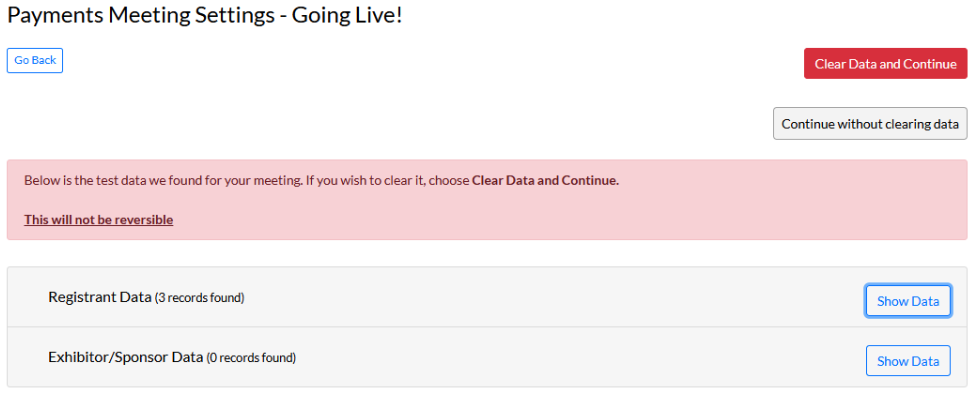
- The next page will display any registrations entered while in test mode. Click Clear Data and Continue to delete the test records and move to the next step or click Continue without clearing data to keep the test records and move to the next step.
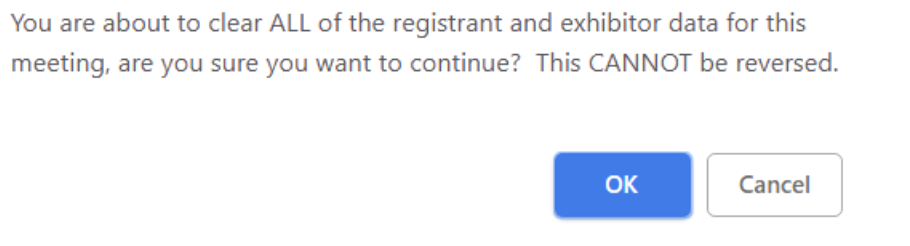
- If you select Clear Data and Continue you will be prompted to confirm that you would like to permanently delete the test records. If you would like to delete the test records, click OK. Otherwise, click Cancel to return to the page and select Continue without clearing data.
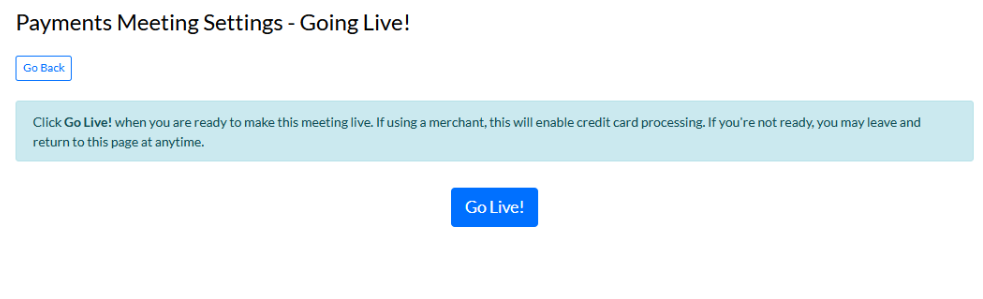
- Lastly, you will select Go Live! to complete the process. If you only wanted to clear test records and are not ready to go live, you can leave this page without clicking the Go Live! button. Simply return to the Payments - Merchant Settings page later to complete the process of going live.
Last modified Dec 22, 2025
Was this article helpful?
That’s Great!
Thank you for your feedback
Sorry! We couldn't be helpful
Thank you for your feedback
Feedback sent
We appreciate your effort and will try to fix the article