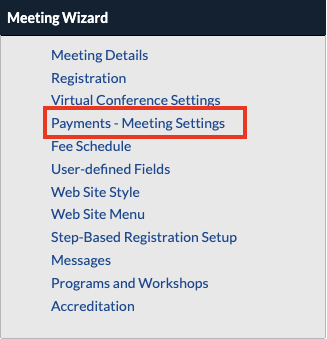
- To select your preferred currency, navigate to Payments - Meeting Settings page under the Meeting Wizard header.
- Select your merchant from the dropdown.
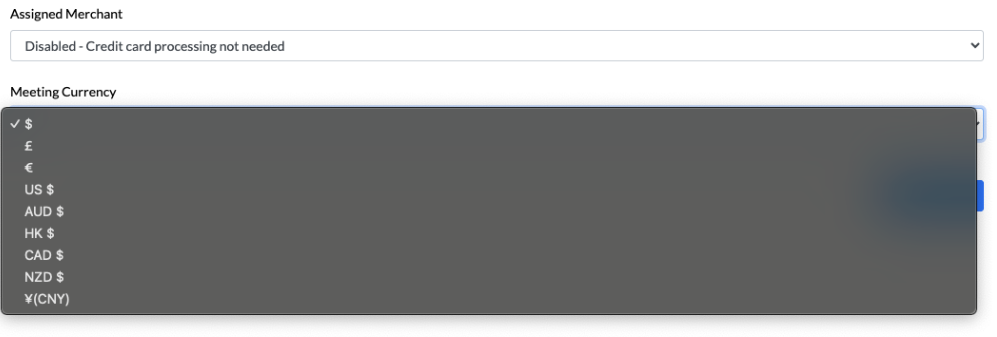
To configure the currency that your meeting will collect in, navigate to ‘Payments - Meeting Settings’ and select the currency from the dropdown after you have selected the merchant account. Note: available currencies are dependent on the merchant account type.
- Click on the Meeting Currency field to select the correct value from the dropdown.
- Make sure to select Save Changes to save any updates to the page.
NOTE
If your meeting is free or will not have live credit card processing, you can select any currency in the same location, just make sure you select either ‘Not Set’ or ‘Disabled - Credit card processing not needed’ from the dropdown.
Last modified Dec 18, 2025
Was this article helpful?
That’s Great!
Thank you for your feedback
Sorry! We couldn't be helpful
Thank you for your feedback
Feedback sent
We appreciate your effort and will try to fix the article