The event organizer can configure receipt settings. Navigate to the Receipts tab on the Settings page in the Lead Capture Admin Portal.
If you do not see this menu item, ensure Configuration Options - Are you selling licenses and/or the Developer Kit to exhibitors? is set to Yes.
IMPORTANT NOTE
This information is required for exhibitors to make purchases. If these settings are not configured, the booth admin will see a 'Purchasing Unavailable' banner in the Lead Capture Exhibitor Portal.
Upon completion of a purchase, a receipt will be available for the booth admin to download in the Lead Capture Exhibitor Portal under the Receipts page. The booth admin will also receive an order confirmation email. If the billing email entered on the payment form is different from the booth admin, that email will be cc'ed as well.
As an event organizer, you can find a list of receipts for all booths under the Receipts page in the Lead Capture Admin Portal. By default, the receipts table is sorted by date/time in descending order (most recently generated receipt first).
Before receipts can be generated, you must customize two required sections that display on the receipt. Once these settings are filled in, you can select the Preview Receipt button to view what this information will look like on the receipt template.
- Paid To – Specify billing details for the entity receiving payment such as:
- Organization Name
- Address
- Phone
- Website
- Order Summary Introduction – Include event-related details such as:
- Event Name
- Dates
- Venue
- Location
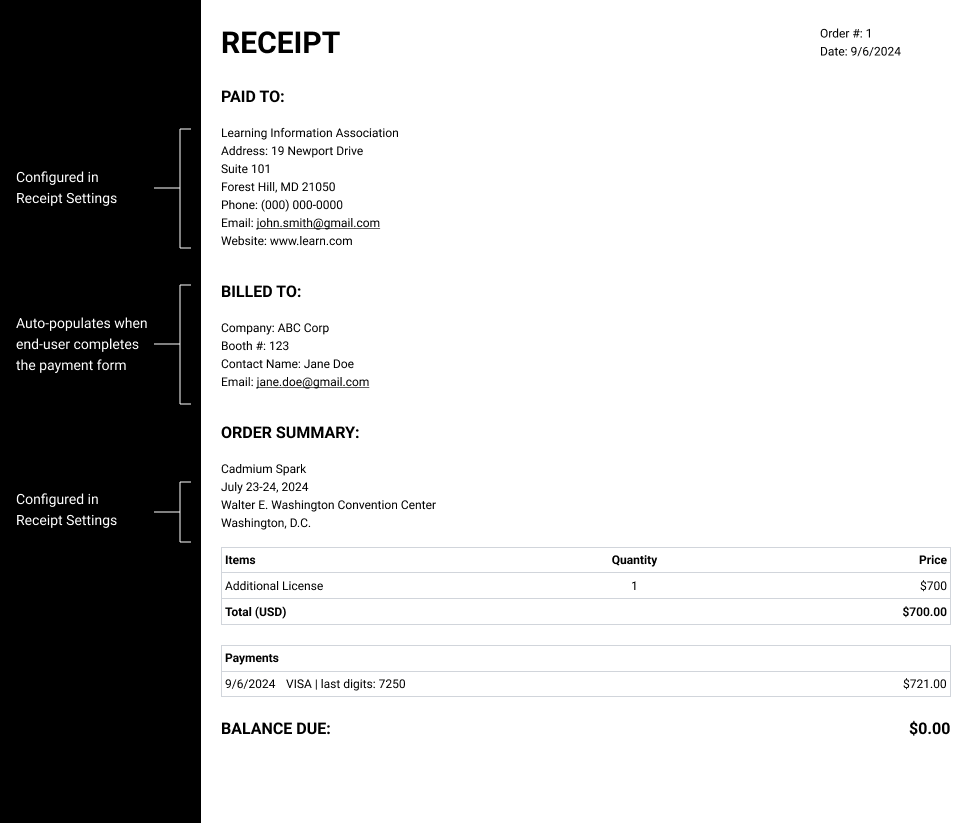
Fig. 1 - Sample Receipt
Was this article helpful?
That’s Great!
Thank you for your feedback
Sorry! We couldn't be helpful
Thank you for your feedback
Feedback sent
We appreciate your effort and will try to fix the article