IMPORTANT NOTE
Eventscribe access via Cadmium Identity is currently being released in phases across the Website, Mobile App, and Survey Magnet modules. As a result, the features and processes described in this article may not yet be available to all organizations. Availability will vary depending on your organization's rollout status during the transition period. For more information, please see Cadmium Identity Transition Plan for Eventscribe.
Eventscribe uses Cadmium Identity as its secure login system. When you log in to all Eventscribe attendee-facing modules, including the Website, Mobile App, and Survey Magnet, you will be redirected to Cadmium Identity to verify your account before being returned to the Eventscribe platform.
Your Cadmium Identity account and your Eventscribe account serve different purposes. Cadmium Identity manages your login credentials, while your Eventscribe account stores your event information and activity. Think of your Cadmium Identity account like a key. It is how you get through the door. Your Eventscribe account contains everything inside, including your session information, materials, and event history.
NOTE
If your organization uses Single Sign-On (SSO) to access Eventscribe, the login process described in this article does not apply to you. Please contact your administrator for assistance. Additionally, Event Organizers can customize site access within Eventscribe, so your experience may vary slightly from the steps outlined below.
Step 1: Access the Eventscribe Site
- Navigate to your event's Eventscribe Website, Mobile App, or Survey Magnet and select the Log In button. Please refer to Cadmium Identity Transition Plan for Eventscribe for module availability.
- If sign up is enabled on the Eventscribe site, you will see a Log In / Create Account button.
Step 2: Enter Your Email Address
- You will be redirected to Cadmium Identity.
- Enter the email address you want to use to access Eventscribe.
- If sign up is disabled in Eventscribe, be sure to use the email address associated with your Eventscribe account.
Step 3: Sign In or Create Your Account
After entering your email address, one of the following will occur:
If you already have a Cadmium Identity account:
- Enter your password or request a one-time email code to complete the login process.
If you do not have a Cadmium Identity account:
- You will be prompted to create one. Follow the steps to set up your account.
NOTE
For more information, please refer to the related Cadmium Identity articles
Step 4: Return to Eventscribe
Once you have successfully logged in to Cadmium Identity, you will be redirected back to Eventscribe.
- If sign up is enabled in Eventscribe, your Cadmium Identity account will automatically generate a new Eventscribe account.
- If your account has been granted access, you will be logged in and returned to the page you originally attempted to access.
If You Cannot Access Eventscribe
Some Eventscribe sites have sign up disabled, which requires users to already have an Eventscribe account to access site content. In this case, you may be able to log in to Cadmium Identity but still receive a "no access" message when redirected back to Eventscribe (Fig. 1).
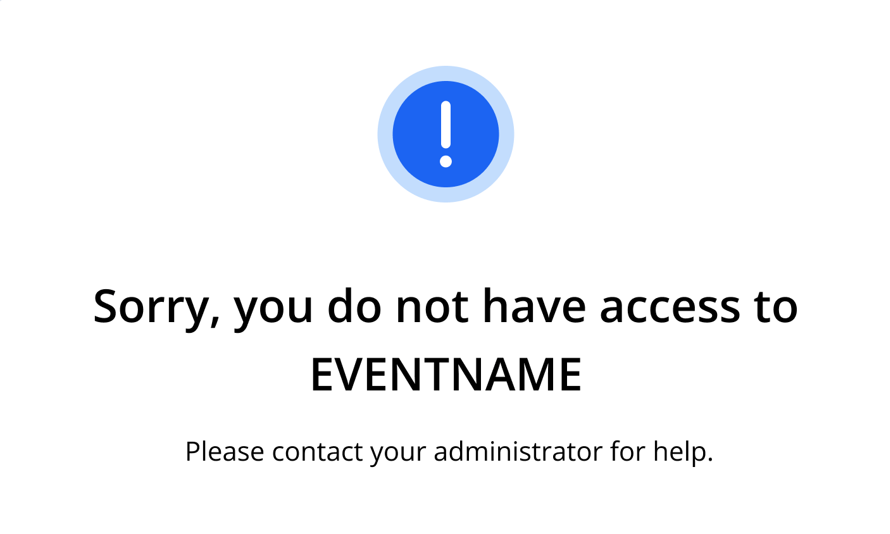
Fig. 1 - No Access Message.
We recommend first confirming that you are using the correct Eventscribe account. You can use the Switch Account button to try a different account or contact your event organizer to request access. Once access has been granted, try logging in again.
You may also contact the Event Organizer or Platform Administrator to request access.
Was this article helpful?
That’s Great!
Thank you for your feedback
Sorry! We couldn't be helpful
Thank you for your feedback
Feedback sent
We appreciate your effort and will try to fix the article